Leave your desk without doubling back
See a supported dialog and choose a visible button from your iPhone instead of returning to the Mac.
 MacNudge
Download
MacNudge
Download
Remote macOS dialog approval
MacNudge is a Mac and iPhone companion for supported native macOS alert dialogs. It shows the requesting app, message, and visible buttons on your iPhone, then clicks only the button you approve. It does not connect to coding agents or their approval systems.

Keep work moving
When an export, backup, installation, or other long-running task pauses for a supported macOS dialog, MacNudge lets you respond from your iPhone and get it moving again.
See a supported dialog and choose a visible button from your iPhone instead of returning to the Mac.
Clear supported prompts that interrupt exports, backups, installations, file operations, and other jobs you left running.
Respond when a supported native macOS alert pauses a build, script, or local automation—without opening a remote desktop session.
Simple flow
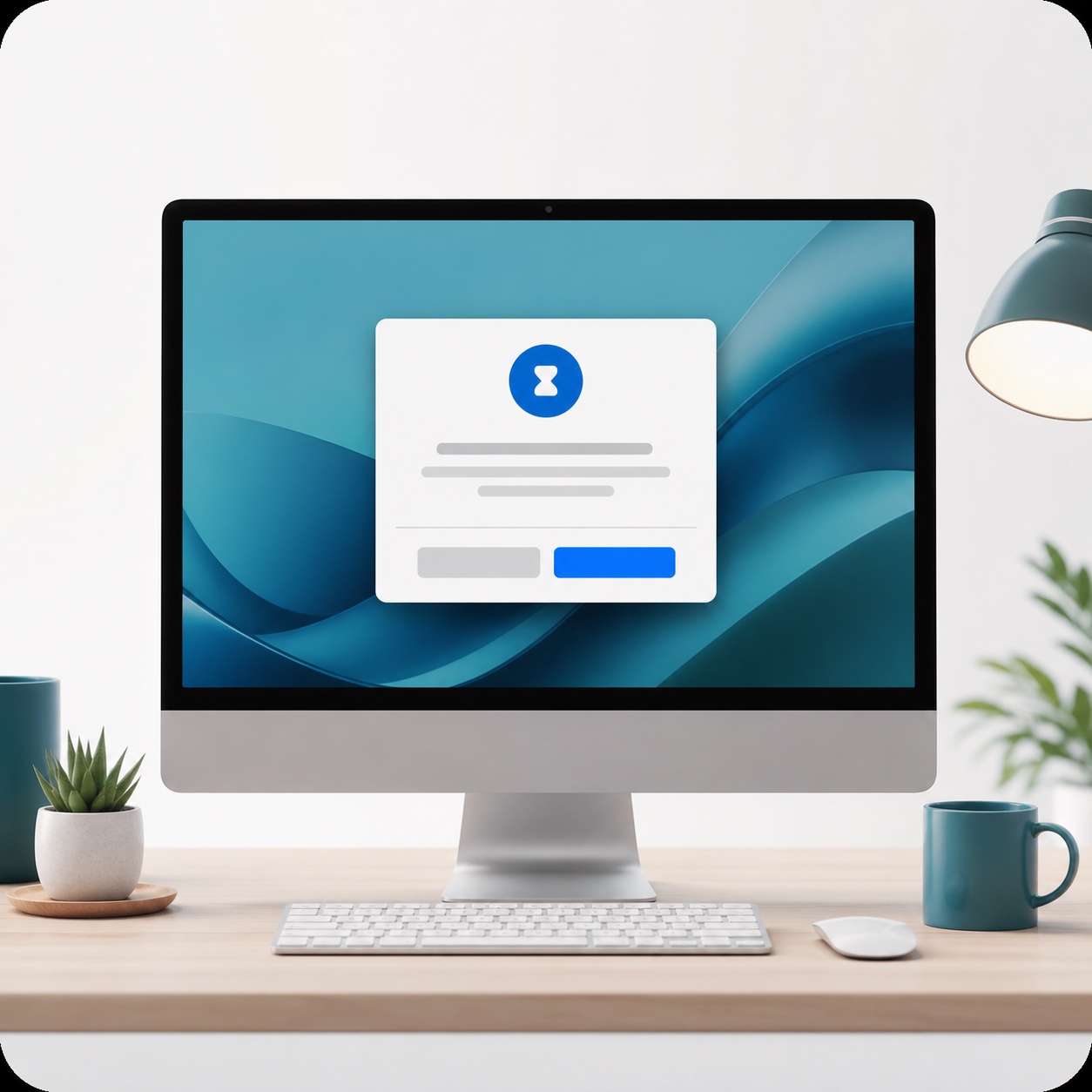
A dialog appears and waits for someone to click a button.
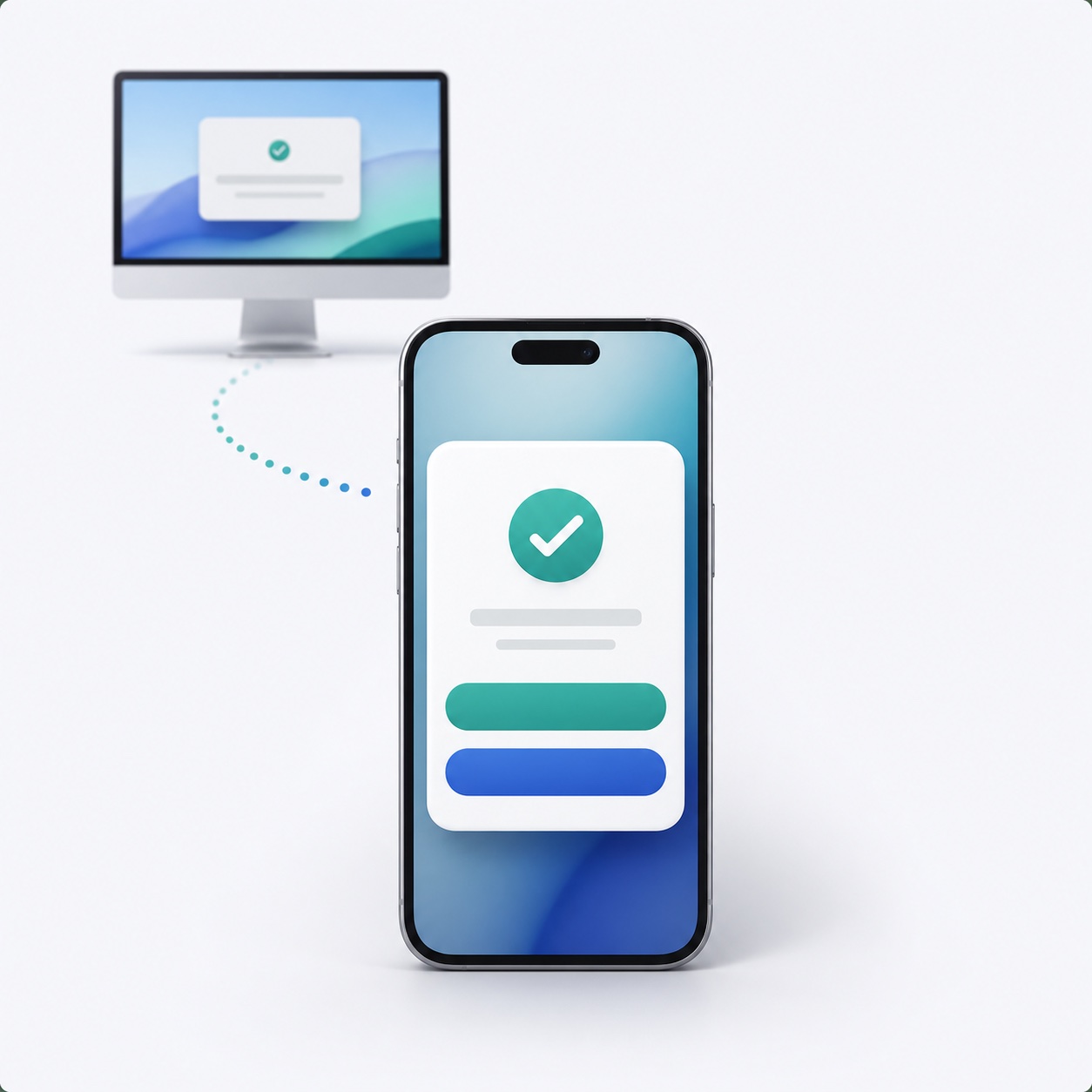
Your phone shows the app, the message, and the available buttons.
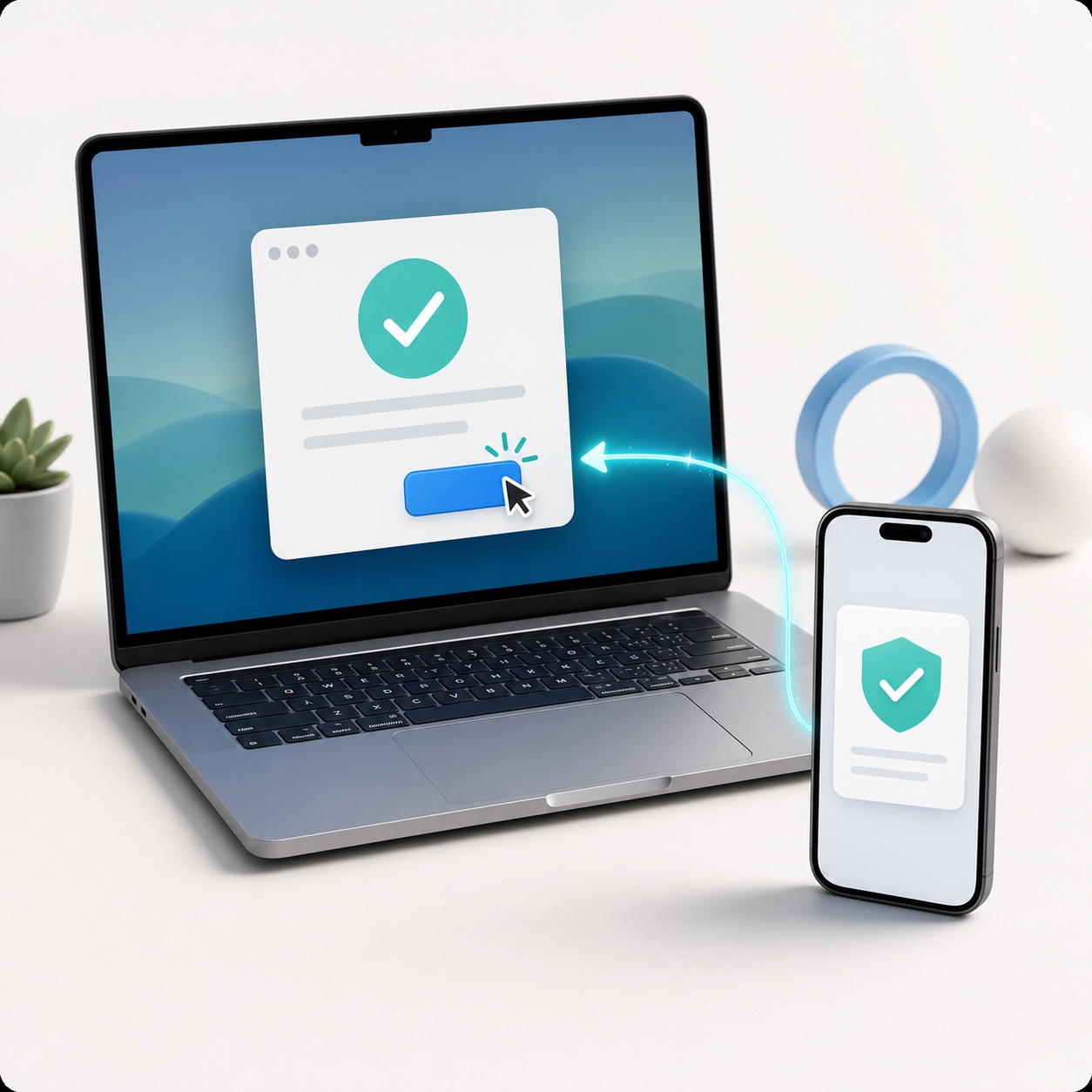
MacNudge presses that one approved button on the Mac.
Prompt routing
MacNudge notifies you about active prompts either way, so you know what is waiting on your Mac. Standard macOS alert dialogs with visible buttons can be handled from your phone. Passwords, Keychain, System Settings, and complex windows need direct Mac access.
For standard macOS alert dialogs with visible buttons like Allow, OK, Continue, Replace, Restart, Cancel, or Don't Allow, MacNudge shows you the app, message, and choices. You tap a button, and Mac Nudge clicks that exact button on the Mac.
If a prompt asks for a password, Keychain access, System Settings, or a separate window, MacNudge marks it as Mac Access. Use Screen Sharing, TeamViewer, AnyDesk, or physical access to finish it.
Safe dismissals like Cancel, Deny, or Don't Allow can still be handled remotely.
What it does
Put MacNudge on the Mac you leave running. When a normal approval prompt blocks your work, open the approval page or Nudge Remote and choose what should happen.
Set it up once, then leave the Mac running.
MacNudge can come back after the Mac signs in.
See what app is asking and what buttons are available.
Built-in guardrails
MacNudge does not expose your mouse or screen. It only clicks a button it found in a waiting dialog, after you approve that exact button.
Password, Keychain, and security settings prompts stay in the "Mac Access" area.
Safe dismissals like Cancel or Don't Allow can still be handled remotely.
Accessibility permission is required so macOS lets MacNudge inspect dialogs and press approved buttons.
FAQ
These are the questions people ask when a Mac is running somewhere else and a simple button click blocks the work.
Yes. MacNudge can show standard macOS alert dialogs with visible buttons like Allow, OK, Continue, Replace, Restart, Cancel, or Don't Allow.
For simple Finder dialogs with clear buttons, MacNudge can show the message and choices so you can approve the exact button from your phone.
No. MacNudge does not connect to Codex, Claude Code, or other coding-agent approval systems. It handles supported native macOS alert dialogs; terminal prompts, agent questions, and command approvals are not supported.
Install

If you started from Nudge Remote on the App Store, this is the Mac app you still need. Download the DMG, drag the app to Applications, then grant the permissions macOS asks for.
Download Mac app
Get the iPhone companion for receiving approval alerts while you are away from your Mac.